    Blog Series: Lighting Education

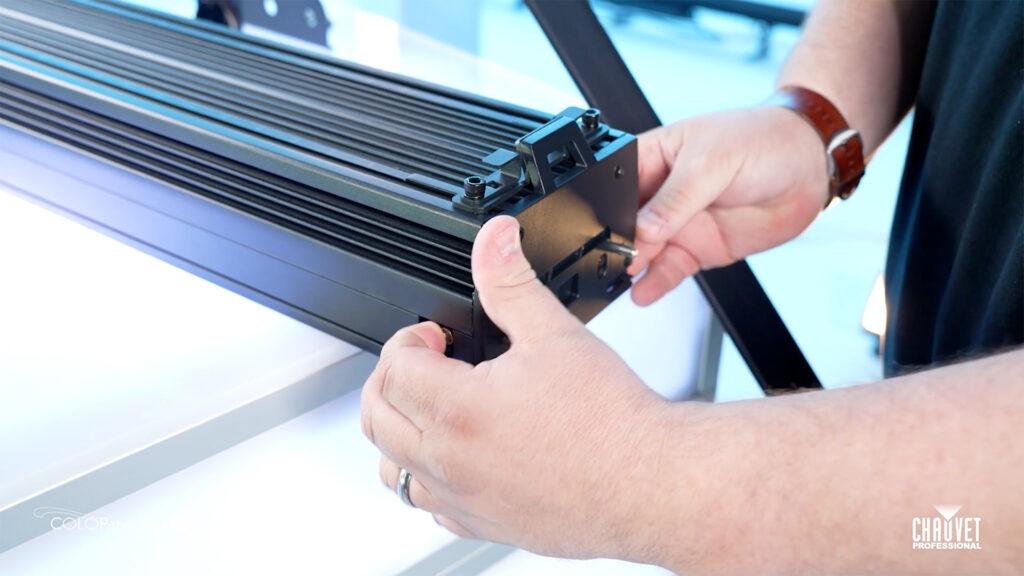
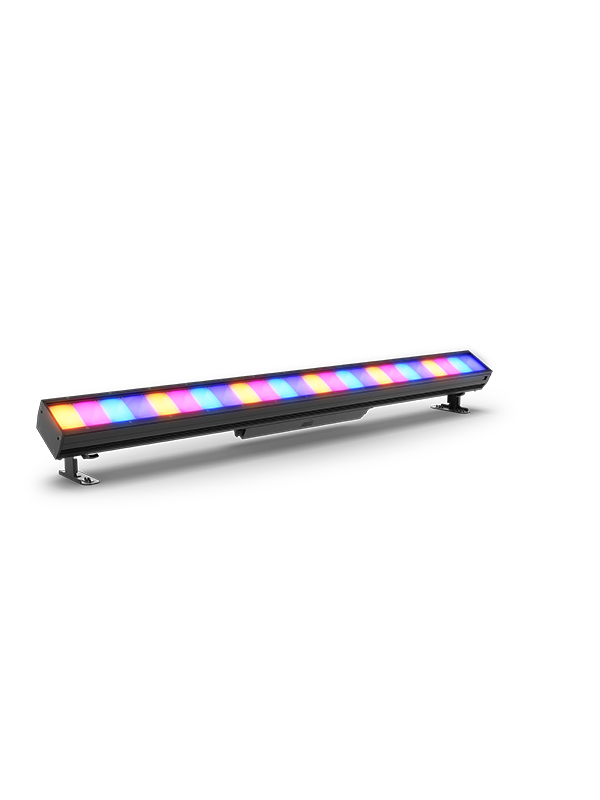
    How to Switch Pixel Order of COLORado PXL Bar 16 

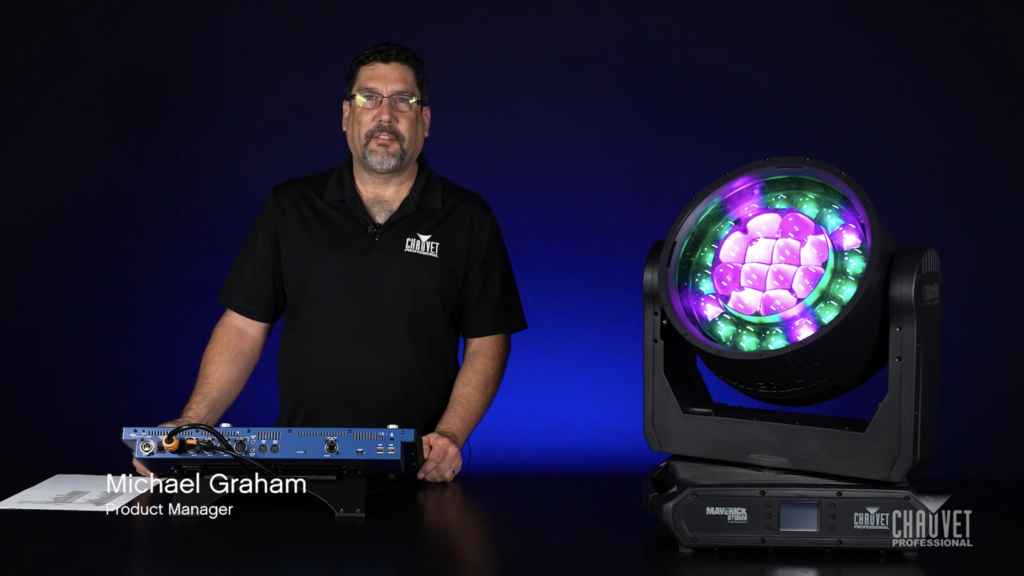
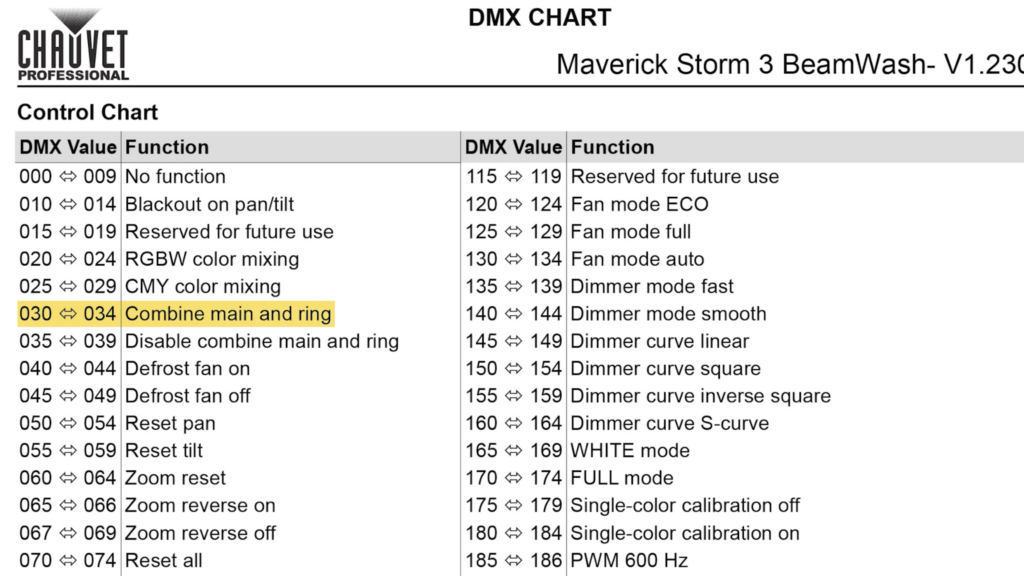
    One of the great things about the Control channel is the options it gives us for changing fan settings, PWM settings, selecting dimming curves, and more.

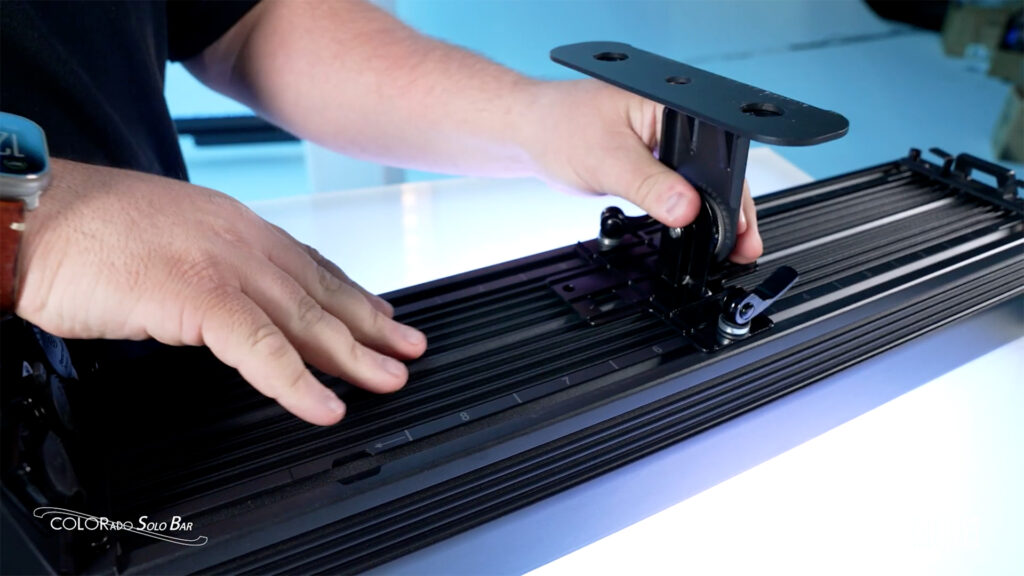
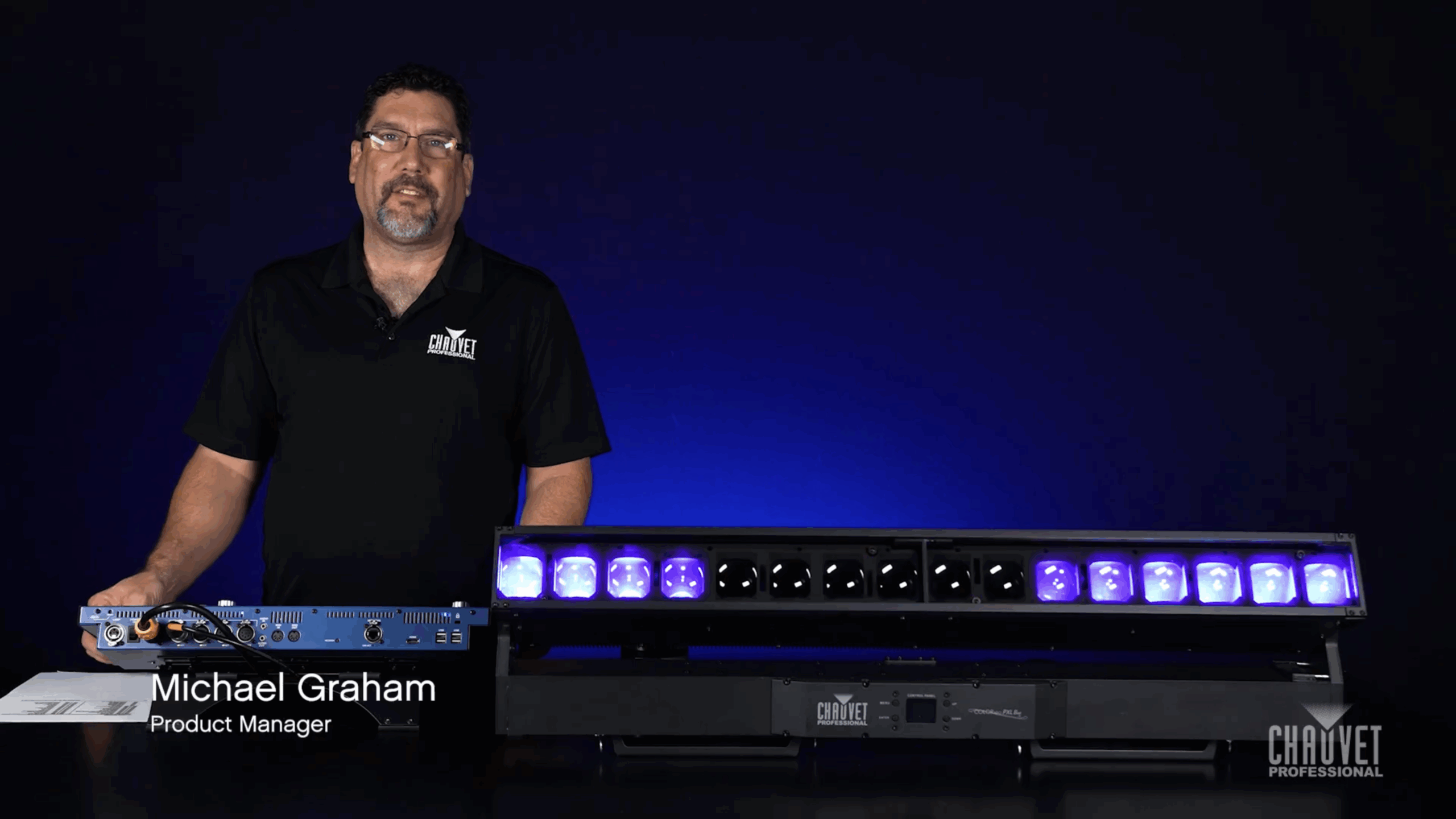
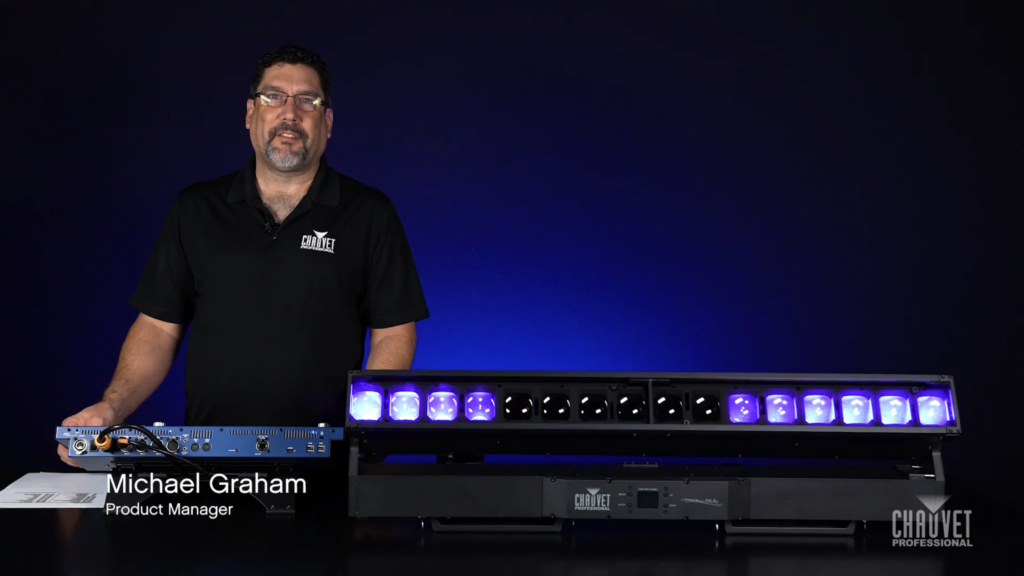
    WATCH NOW to learn how the Control channel can be used to switch pixel order by defining the first pixel on COLORado PXL Bar 16. Assigning a first pixel is how we invert the direction our effects run.

    This is particularly useful when fixtures are mounted in a mixed orientation, allowing upside-down fixtures to match the direction that effects run in the rig, regardless of how they’re hung.

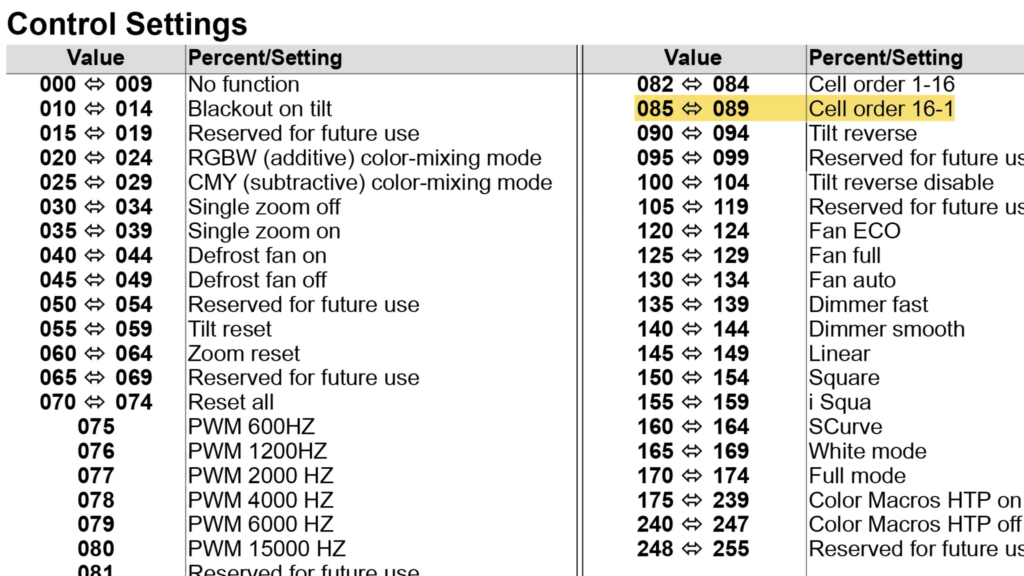
    In the Control channel, Cell refers to pixel. Setting the Control channel between 085~089 reverses the cell order and moves the starting pixel to the opposite end of the fixture.
    Understanding how Control channel options can help you control your rig better is a great way to come into a show.

    Inspecting the Gore Valve on CHAUVET Professional IP65 Rated Fixtures

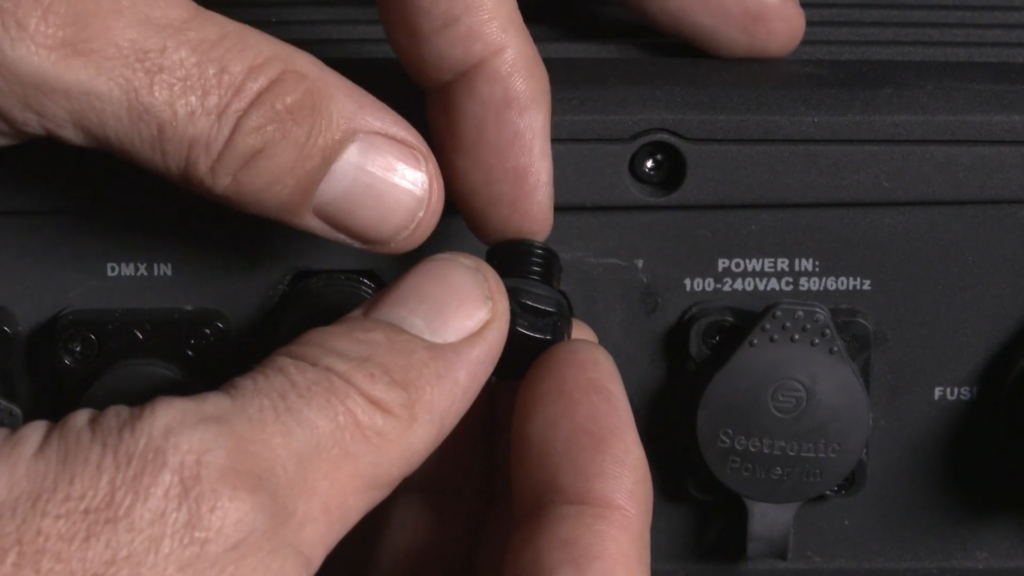
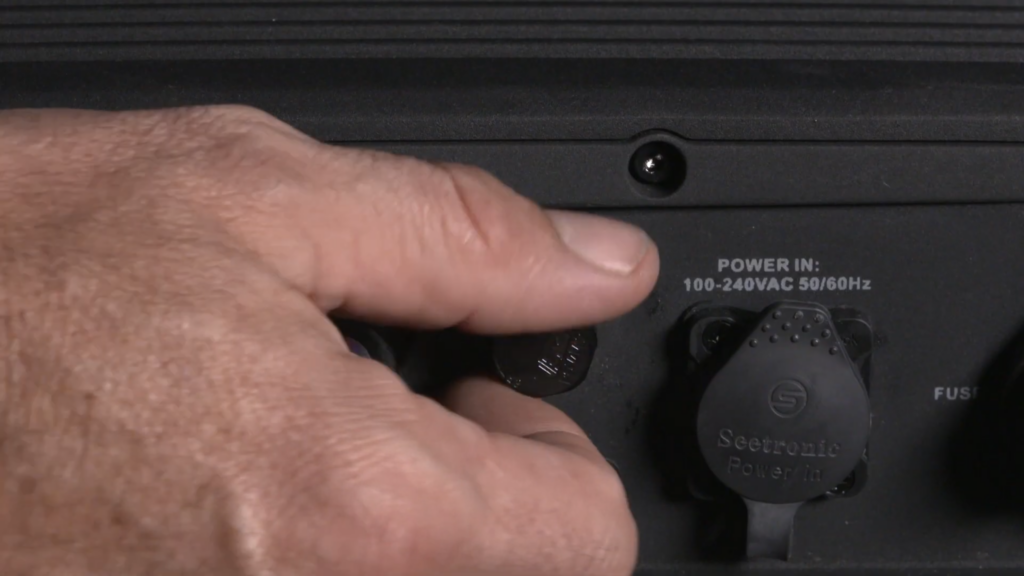
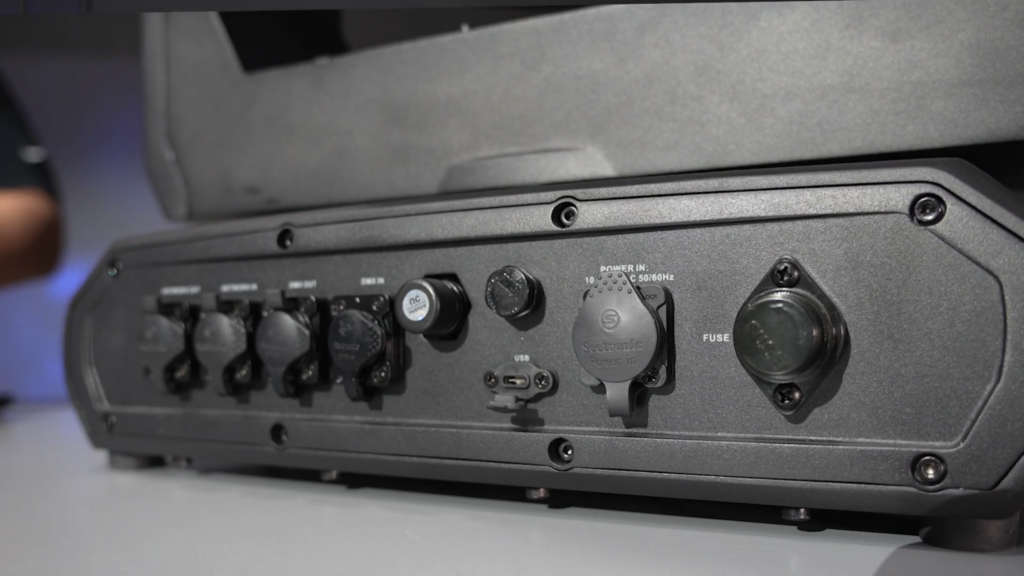
    Gore valves are what enable our IP65-rated fixtures to maintain their seal against the elements while also allowing them to breathe in order to equalize pressure and reduce condensation.

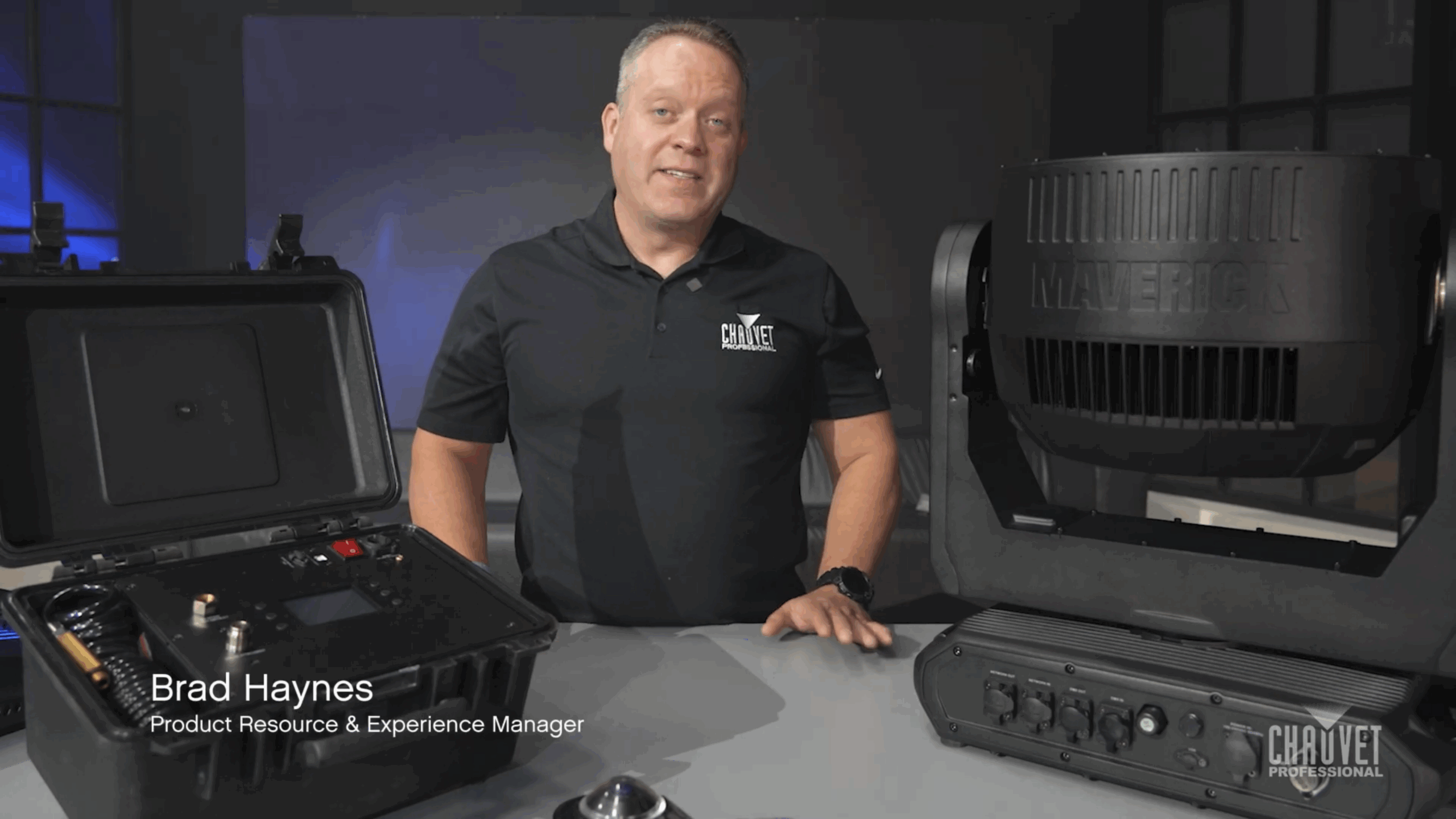
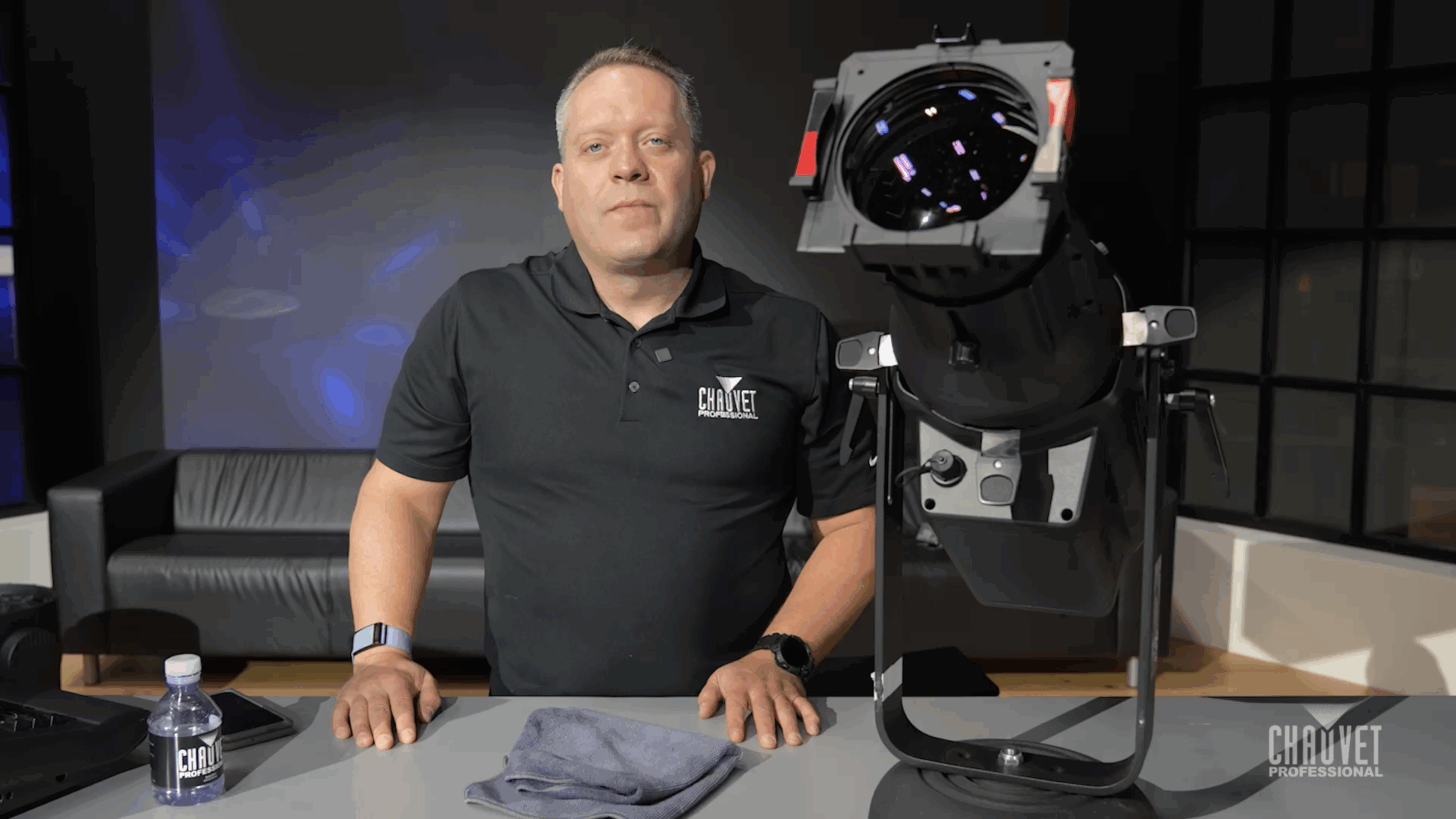
    Product Resource & Experience Manager Brad Haynes explains the importance (and ease) of removing the Gore valve to inspect for signs of debris or clogging, allowing them to breathe in order to equalize pressure and reduce condensation.

    Tune in for a quick how-to video demo: https://youtu.be/Dy1A3sLJESg

    For maintenance that goes beyond visual inspection, we have developed a purpose-built portable tool capable of testing the vacuum and pressure parameters of IP rated products.

    In a future Light Snacks, we will cover the complete features and operation of our IP Tester, but here is an overview of this important tool for testing and maintenance of IP-rated products fitted with Gore valves:

    • Compatible with all IP rated products with Gore valves.
    • Pre-loaded testing personality files for CHAUVET Professional IP rated fixtures as well as offering the ability to easily create custom testing profiles.
    • Built-in web server allows for easily connecting to PC computers for creating fixture profiles and storing information collected from tests.
    • Housed in a compact and impact resistant ABS plastic case designed with touring in mind and able to fit in tool and road cases.

    Full specs: https://chauvetprofessional.com/products/ip-tester/

    How to Adjust PWM & LED Frequency Settings for Live and On-Camera Looks

    Pulse Width Modulation (PWM) dimming changes LED brightness by altering the pulse width of the electrical current. 

    PWM dimming offers important advantages for LED lighting systems, including a wide range of dimming levels without compromising color accuracy, and the ability to be adjusted to suit the requirements of sensors, cameras and displays.  

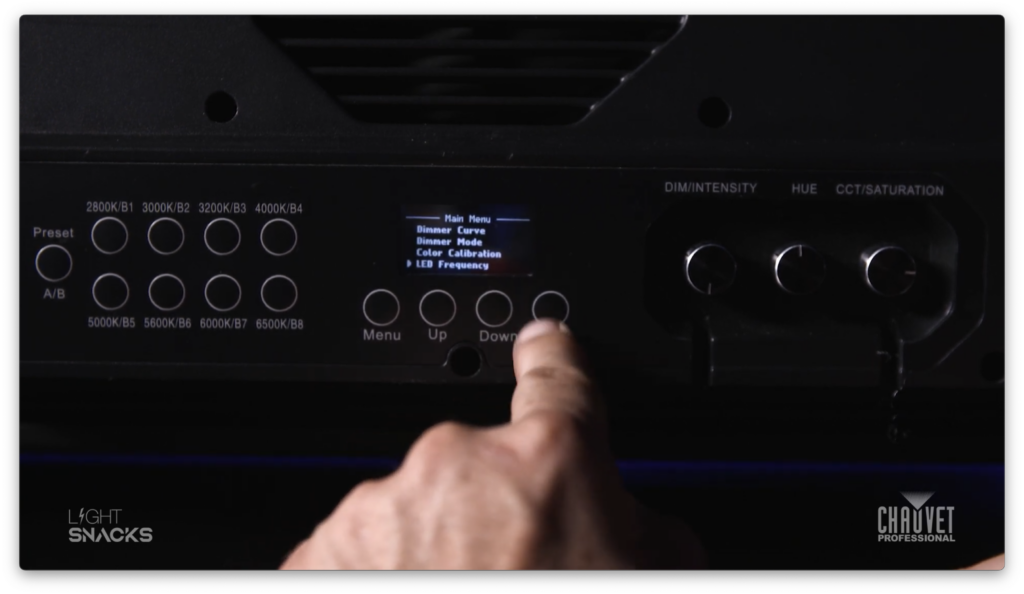
    CHAUVET Professional fixture menus include the option to specify the frequency that LED currents switch on and off.

    To prevent a flickering effect, the on/off frequency must be faster than what the human eye can see (typically over 100Hz).

    As with any technology, PWM dimming has drawbacks that must be taken into consideration, most importantly the potential for detectable flicker and noise.

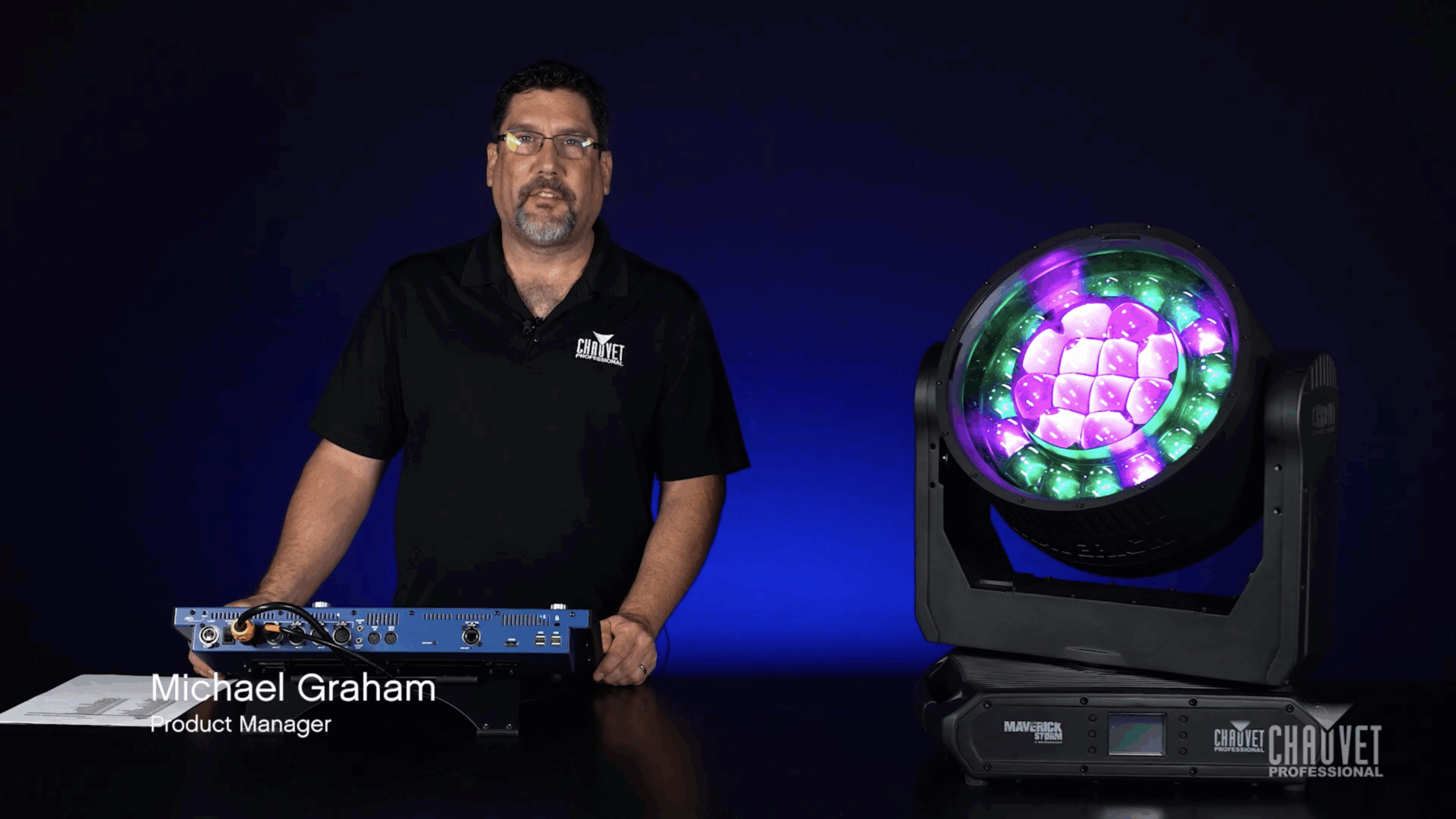
    In a recent episode of Light Snacks, Product Manager Michael Graham explained how to get the best PWM settings for your LED fixtures. If you have too much hiss coming from your LED fixture, it’s an easy fix using the tips in this video tutorial:

    Since all camera settings are different, it’s impossible to say which setting will work best for you. Your best option is to scroll through the settings as you watch through your camera or monitor to see when the rolling stops.

    How to change the settings:

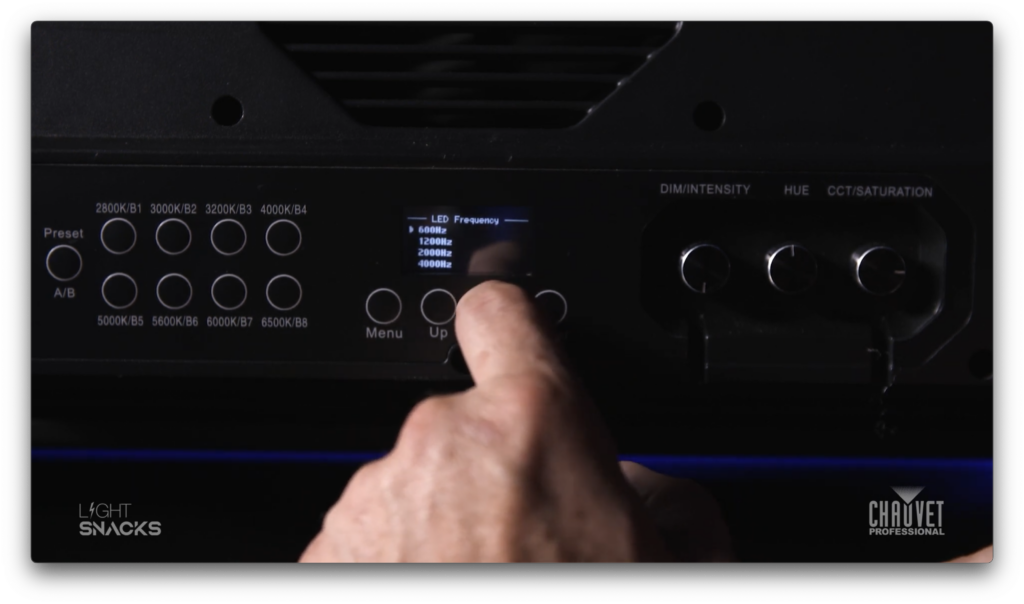
    • Hit MENU

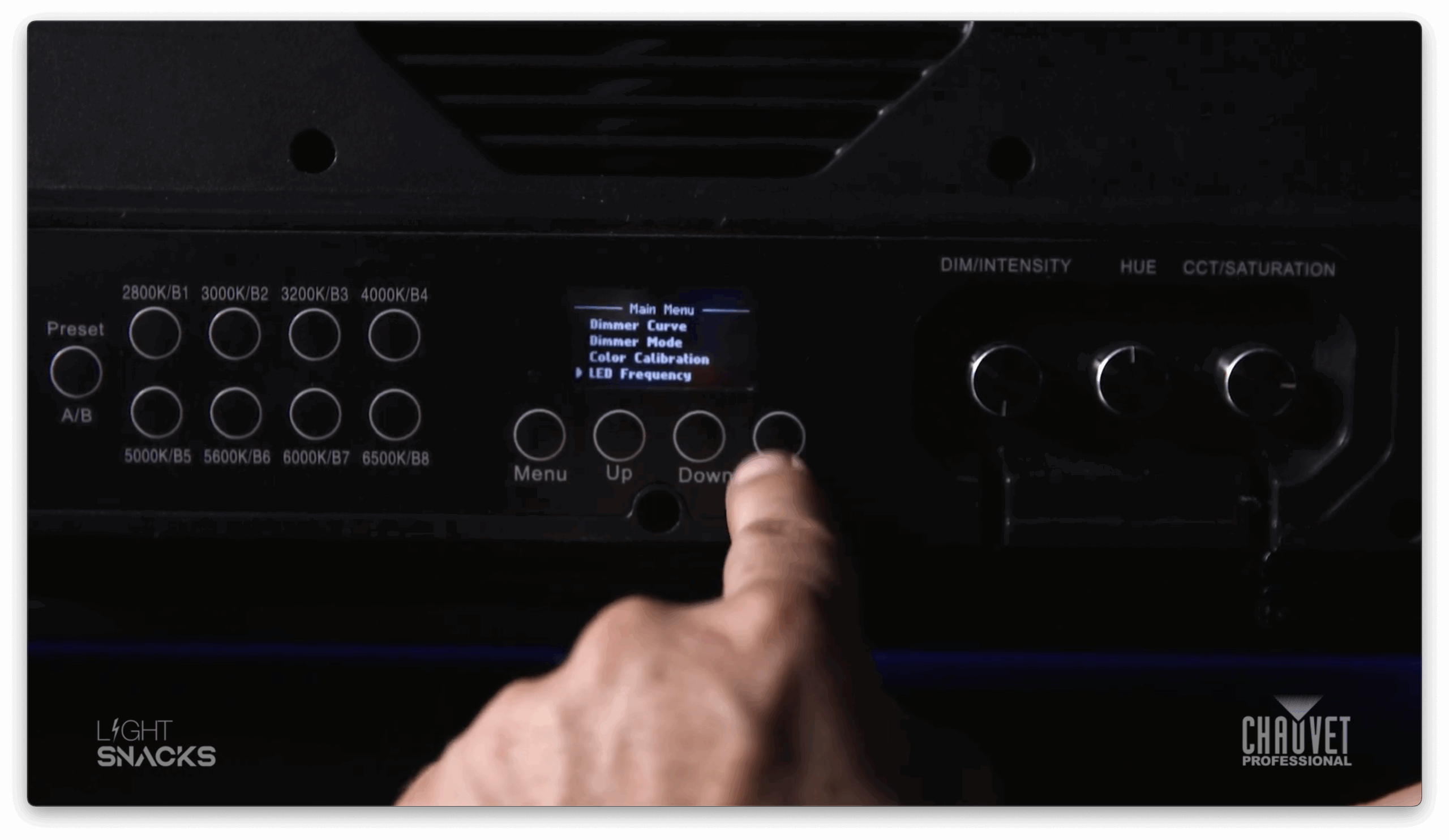
    • Select LED FREQUENCY

    • Select Hz

    For purely live applications that do not require adjustment for the camera’s eye, the human eye will usually see better dimming when the fixture is set to the lowest LED frequency option. As a general rule, the lower the Hz, the better the dimming performance.

    Get the best out of your fixtures when they’re on camera or live by paying attention to your fixture’s PWM settings.

    Maintenance Tips for Your Haze & Fog Machines

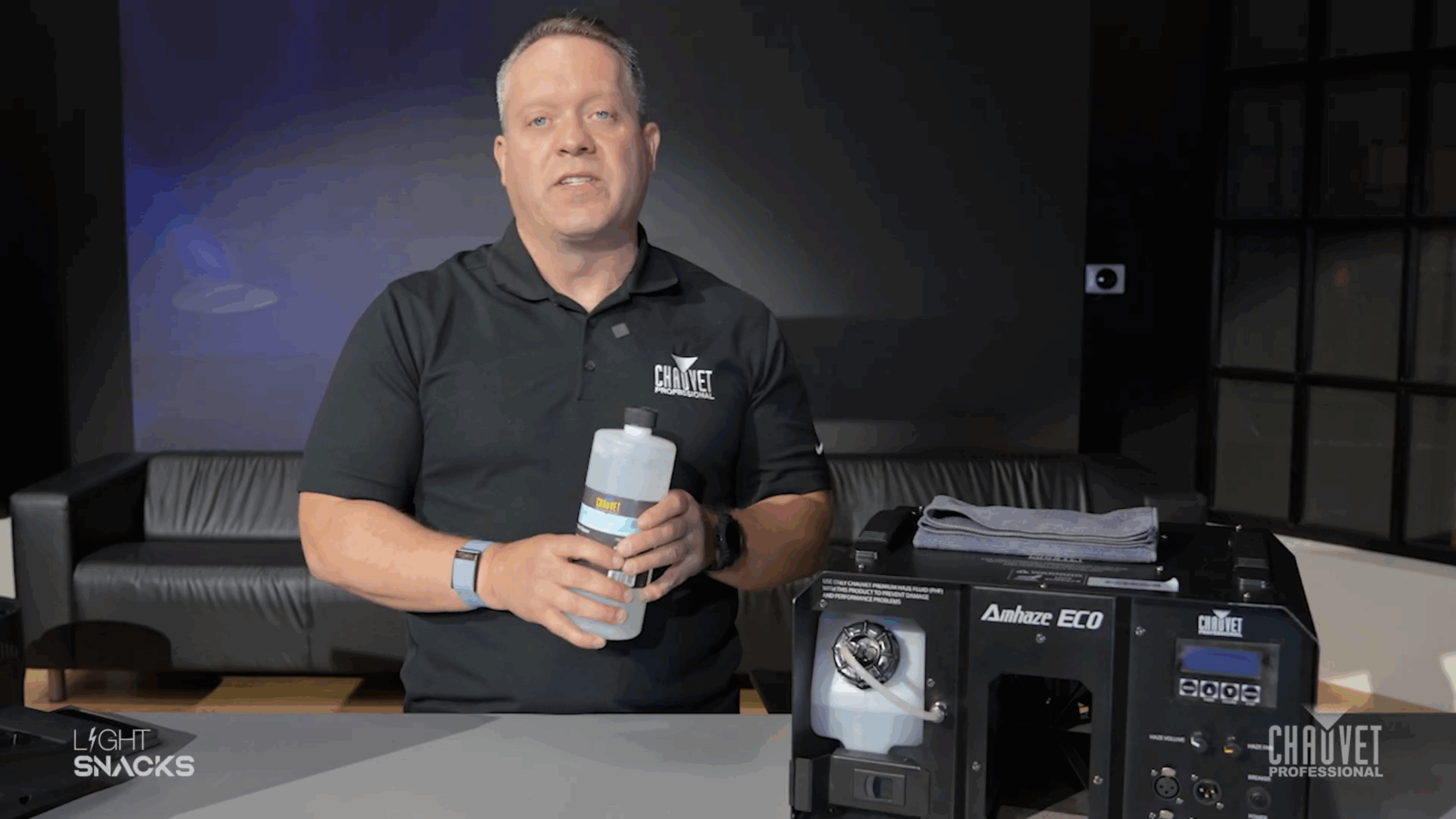
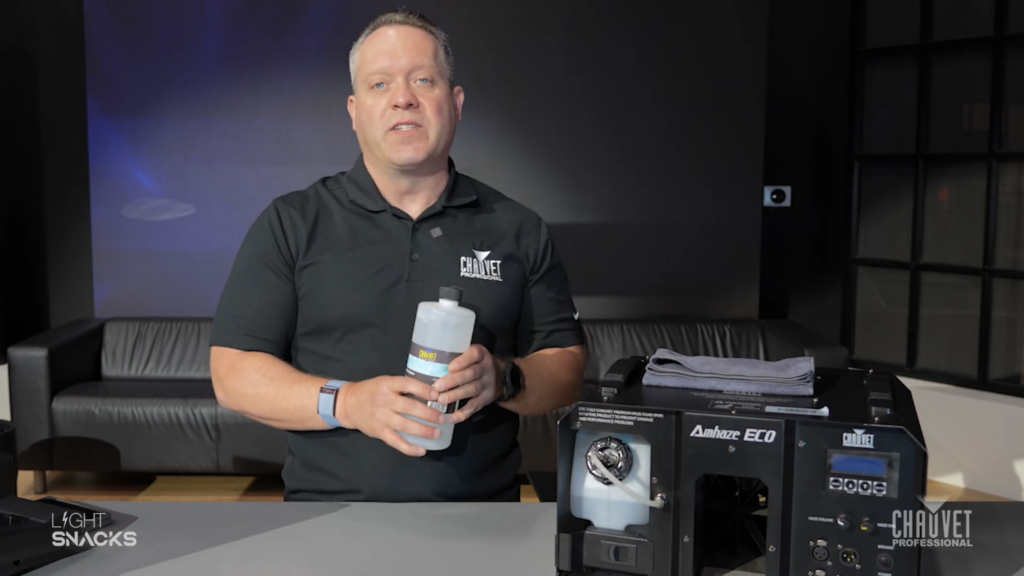
    Three important tips for prolonging the life of your fogger or hazer that uses water-based fluids:

    After each use, blow or wipe off any debris or residue on the unit

    • Do NOT store empty. Top up fluids before storing. This often ignored piece of advice has created more maintenance headaches with atmospheric effects machines than all other issues combined.
    • DO flush out the system every 40 hours.  
    • To optimize flushing both fog and haze machines, we recommend FCQ ready-to-use cleaner fluid.

    Add one cup of FCQ to your machine’s liquid reservoir and cycle it through the system (by operating and activating output in normal fashion).  Adding FCQ to your maintenance routine will:

    • Clean heater cores, increasing fog machine life and performance
    • Increase output and life expectancy of any fog machine when used regularly
    • Safely remove residues with a formula specifically designed for water-based machines

    Catch our episode of Light Snacks that covers these tips at: https://youtu.be/GOzhqoFm2rE

    And find more information about our FCQ cleaner at: https://www.chauvetdj.com/products/fog-cleaner-quart

    Updating Maverick Fixture Software with a USB Drive

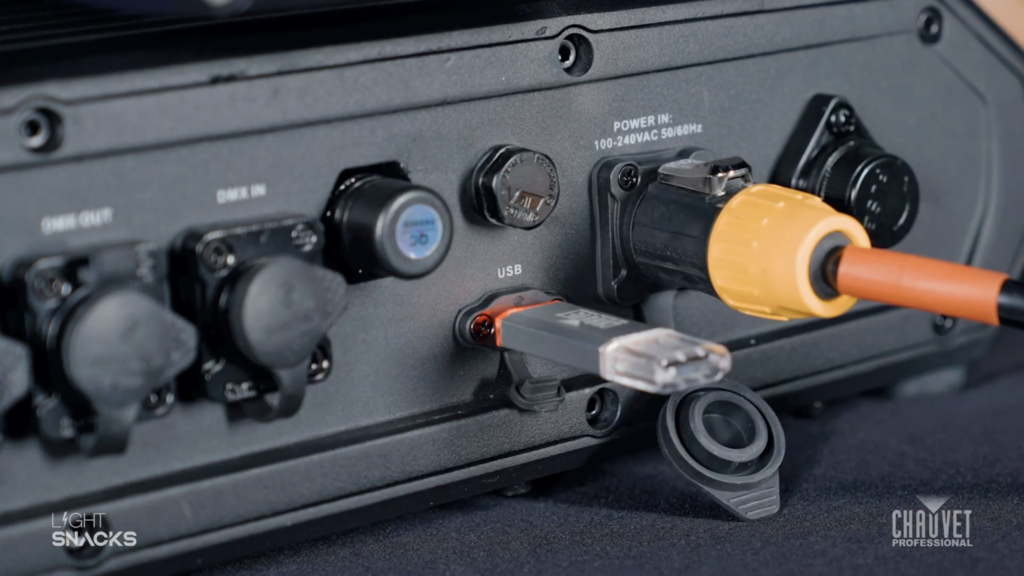
    First, make sure you have downloaded the software update to your USB stick. You can load all software to your thumb drive, as our fixtures will automatically detect the relevant software for updating.

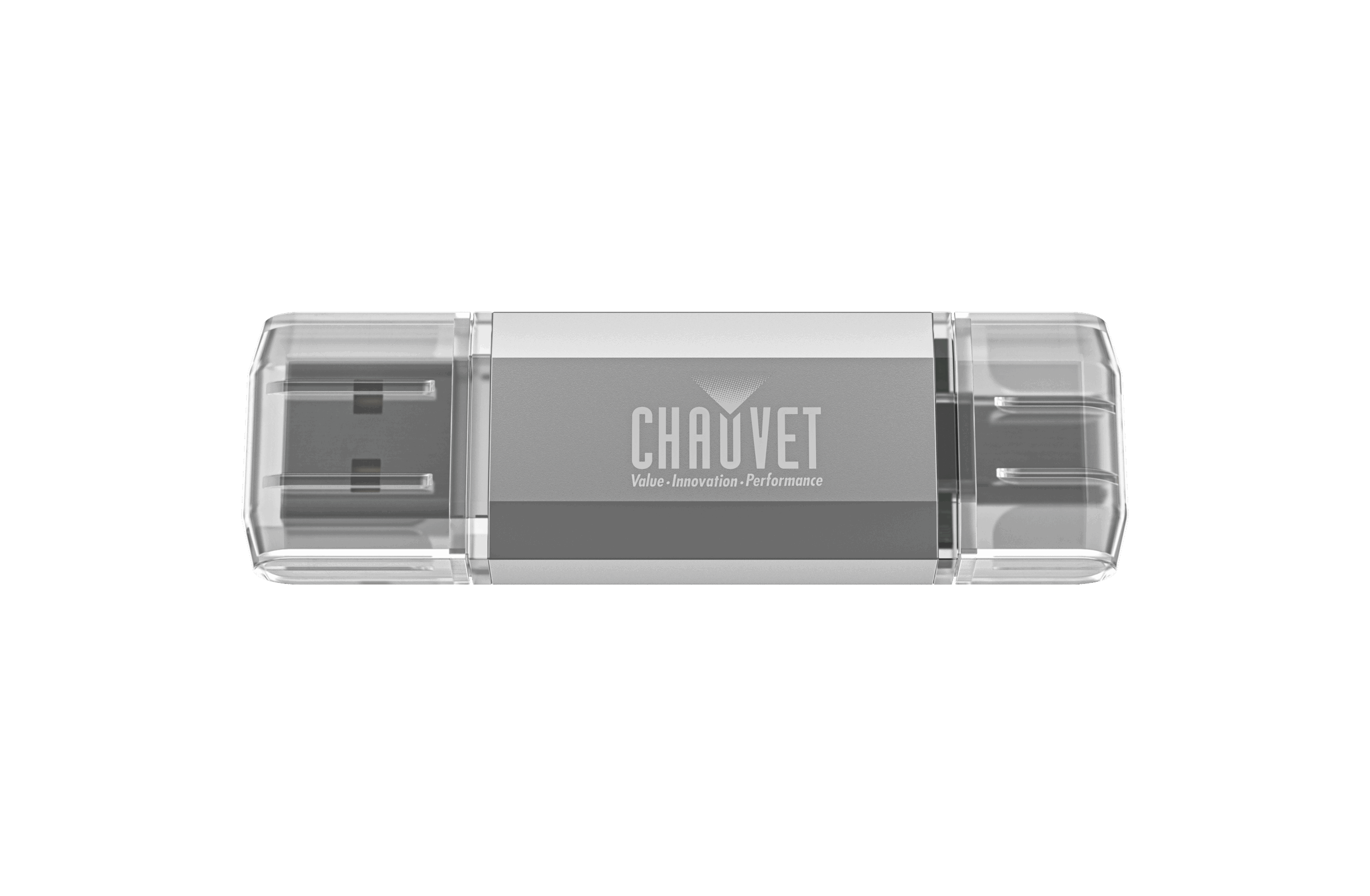
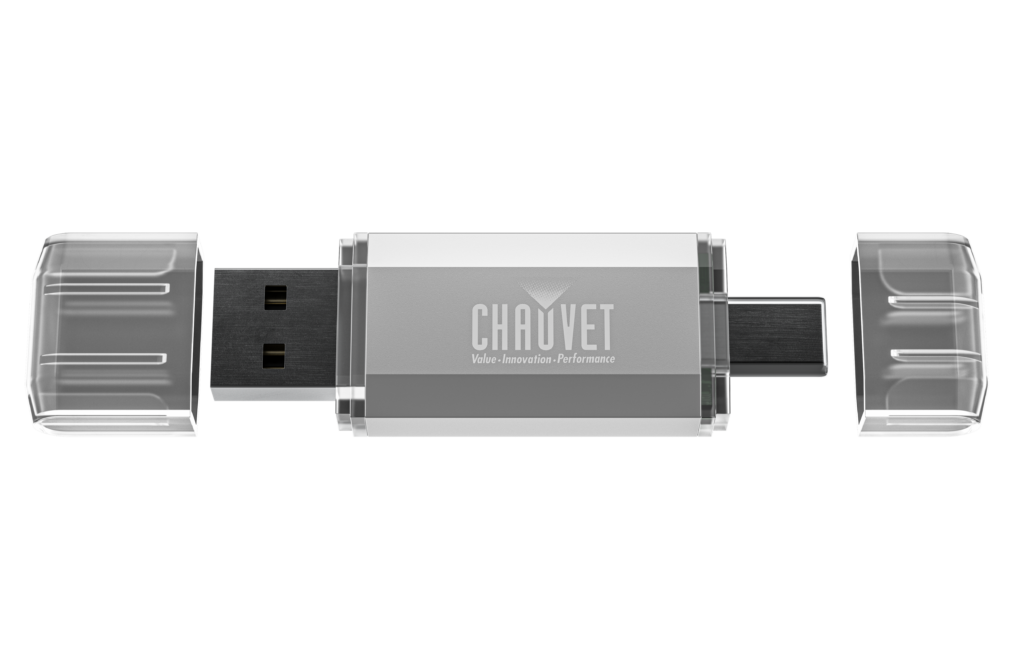
    Our Firmware USB drive offers both USB-A and USB-C ports, 8GB of storage for your firmware files, and is correctly formatted to ensure compatibility with our fixtures. Store as many firmware files as needed on this handy device.

    link: https://chauvetprofessional.com/products/firmware-usb/

    We have created a step-by-step video tutorial that explains the software updating process:

    Light Snacks: Maverick Moving Heads Software Update with a USB

    link: https://youtu.be/NciHzI4G9Y4

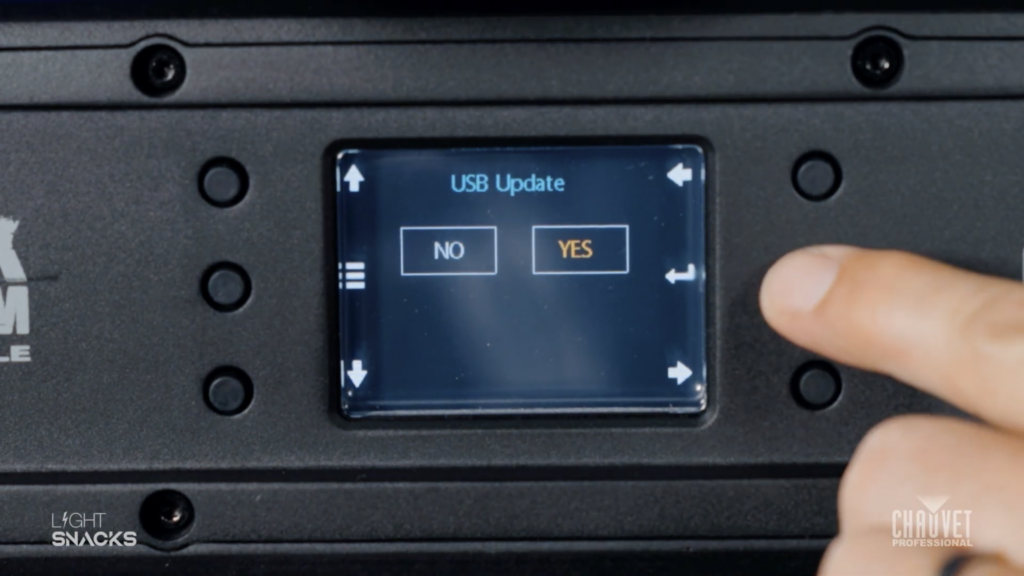
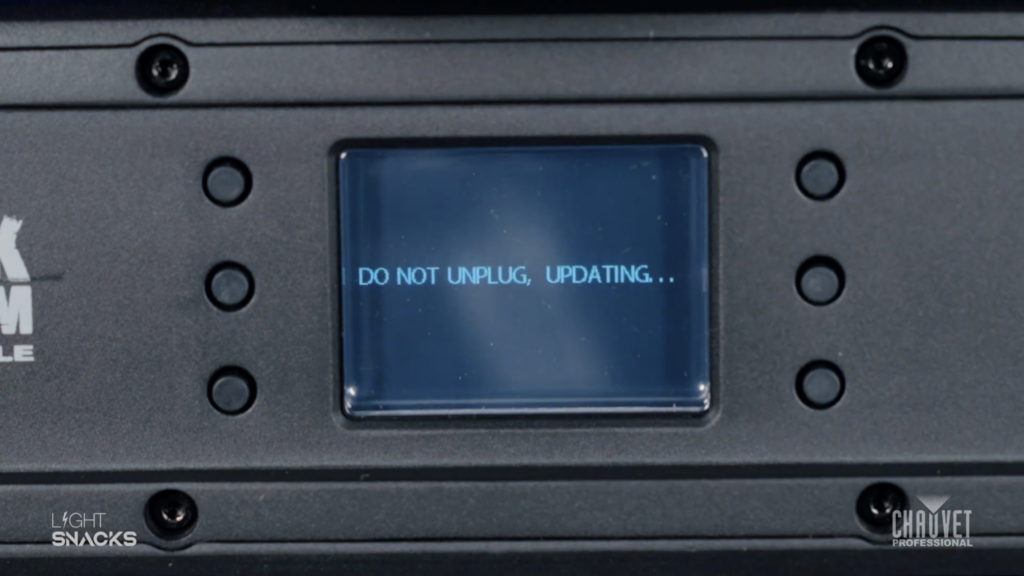
    As soon as you put your USB stick into the fixture the LED display will prompt you to confirm the USB update. Say “YES.” The fixture will select the right software – and then confirm the update again. “YES.” The screen will go blank with a message at the bottom showing “Update in progress. Please wait.”

    DO NOT TURN THE FIXTURE OFF.

    Once the update is complete the LED display will show you the USB update screen and you can remove the USB stick. The LED screen will confirm the USB has been disconnected. Go back to your Main Menu screen.

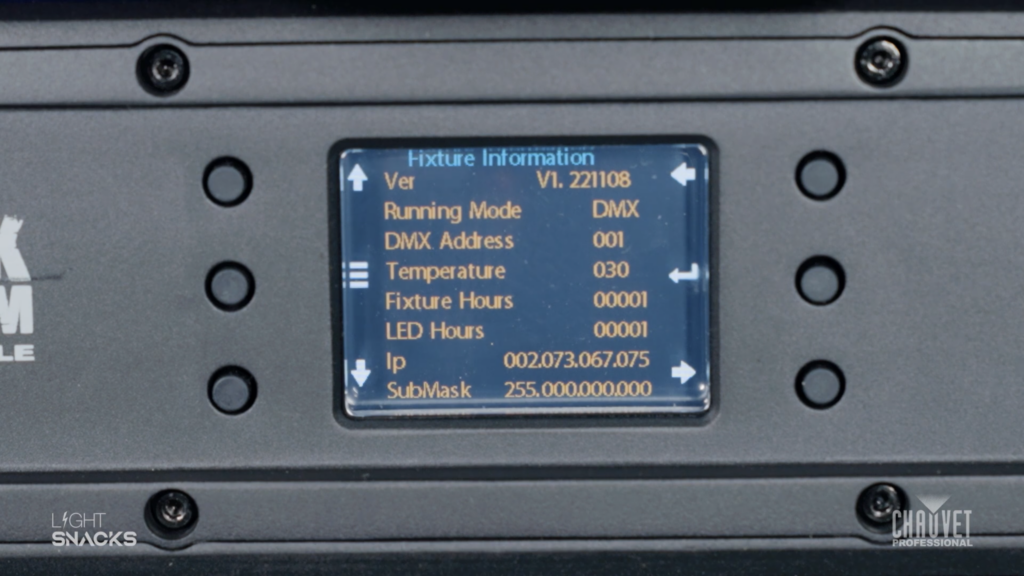
    If you want to confirm that the correct software has been updated you can navigate menu options to check the version number of the software. If it matches the software version for your intended update, you’re good to go.

    You can always find our latest firmware at our GitHub portal: https://github.com/Chauvet-Pro

    Tech Talk: How to Layout a Stage Plot

    On Facebook LIVE, Thursday at 2PM (EST) / 19 hr (BST), find out that there’s no right or wrong way to approach a lighting design with CHAUVET Professional National Worship Resource Manager Daryl Sutton, but there are a few tried and true tips for achieving ultimate design flexibility in worship environments. Join him for this installment of Tech Talk: How to Layout a Stage Plot. Keep training at CHAUVET Professional Training & Resource Page.

    Tech Talk: Demystifying Lighting Metrics: CRI, TLCI & TM-30

    Tune in to Facebook LIVE Thursdays 2pm (EST) for a real-time Q&A with CHAUVET Professional Product Managers after Tech Talk. This week, you can take the guesswork out of understanding lighting metrics and learn how to make quality of light choices based on the right data and specs with National Resource Manager of Concert & Touring Brad Haynes in Tech Talk: Demystifying Lighting Metrics: CRI, TLCI & TM-30. Keep training on the CHAUVET Professional Training & Resource Page.

    Tech Talk: Adding Texture with Gobos & Effects

    Tune in for Tech Talk with CHAUVET Professional Product Managers every Thursday on Facebook LIVE at 2pm (EST). Turn your livestreams into tru virtual events with Product Manager Michael Graham as he shows how to add visual appeal to backgrounds and set elements in Tech Talk: Adding Texture with Gobos & Effects. Watch now as he breaks down baseline features, animation, and effect functionality so you can steal the show. Get more Tech Talk on CHAUVET Professional Training & Resource Page.

    Tech Talks Coming Soon: July

    Tune in Tune in Thursdays at 2pm (EST) / 19hr (BST) on Facebook LIVE, YouTube, and IGTV for the virtual series packed with how-to’s, in-depth trainings, and design topics followed by a LIVE Q&A hosted by CHAUVET Professional Product Managers to elevate your skillset. Here’s what you can look forward to. Find more resources on the CHAUVET Professional Training Page.  

    July 2nd—IP Fixture & Maintenance/ What IP
    Ratings Mean

    July
    9th—Adding Texture with Gobos & Effects

    July
    16th—Behind the Scenes with Life.Church

    July
    23rd— Using Color, Angle, and
    Gobos to Recreate Outdoor Scenes Onstage

    July
    30th—How to Pick the Right Video Pitch for Your Application

    Tech Talk: What IP Ratings Mean, Application & Fixture Types

    Get more from CHAUVET Professional when you tune in Thursdays at 2pm (EST) / 19hr (BST) on Facebook LIVE, YouTube, and IGTV for in-depth trainings with Tech Talk. This week, explore what IP ratings mean for exterior-based fixtures and how to use them with National Resource Manager of Concert & Touring Brad Haynes in Tech Talk: What IP Ratings Mean, Application & Fixture Types. Learn more from Tech Talk on the CHAUVET Professional Training Page. Â